Get Slate
Slate

Slate for your Mac

Bring the blocks and schedules from your iPhone to the screen where focus matters just as much. Slate blocks the websites and apps you choose across your Mac.

Setup for Mac

Setup instructions

macOS shows two separate security prompts during first setup. Approve both. If either is dismissed, Slate can open normally but blocking will not activate.

1. Download Slate for Mac

Download the signed and Apple-notarized disk image. Both the app and the disk image carry stapled notarization tickets.

Download for Mac

Signed and notarized by Apple

Version
1.0 (build 12)
Size
836 KB (856,032 bytes)
Requires
macOS 14.0 (Sonoma) or later
Architecture
Universal — Apple Silicon and Intel

2. Open the downloaded .dmg

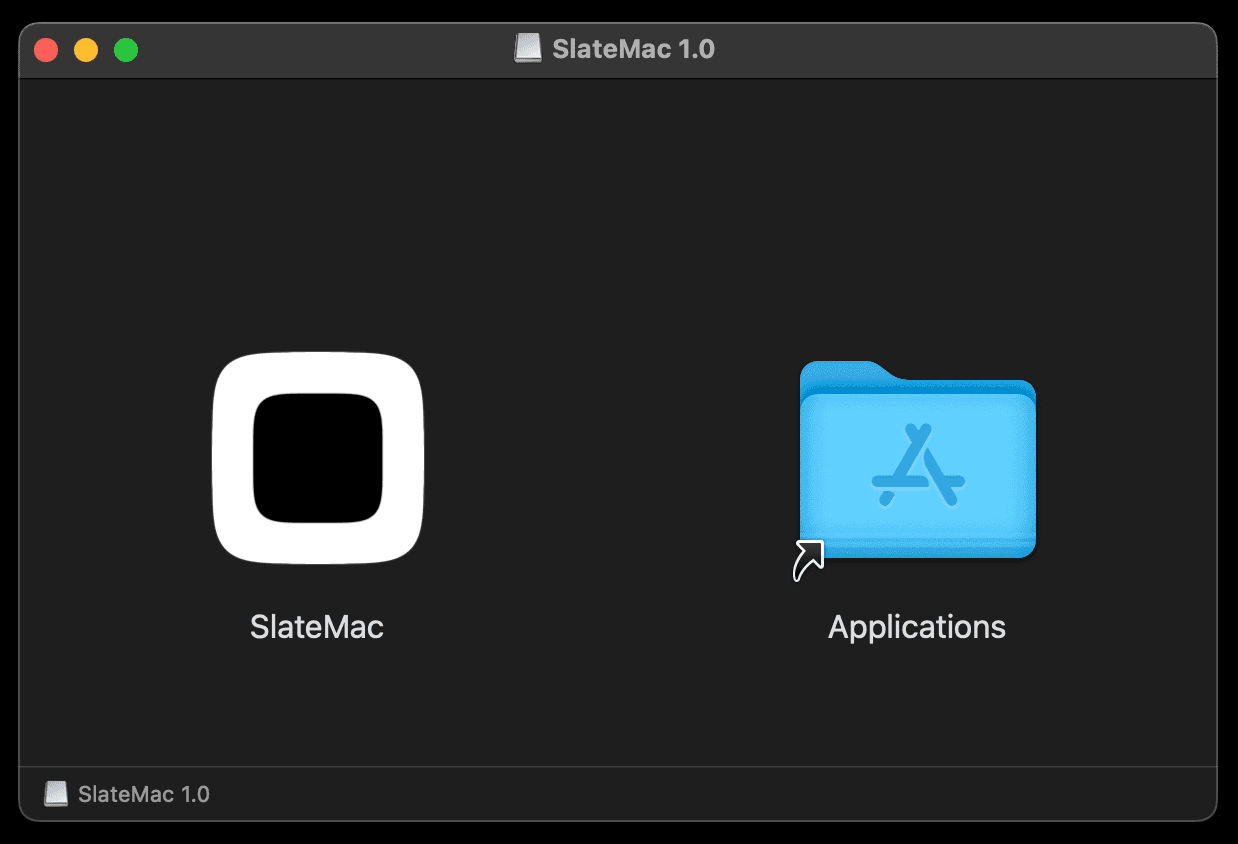
Double-click SlateMac-1.0.dmg. A window opens with the Slate icon and an Applications folder shortcut.

The SlateMac disk image window with SlateMac and Applications icons

3. Drag Slate into Applications

This is required, not just a Mac convention. macOS permits a system extension to install only when its containing app lives in /Applications. Running Slate from Downloads or the Desktop means blocking will never activate.

4. Eject the disk image, then launch Slate

In Finder, click the eject icon next to the mounted Slate disk image. Then open Slate from Applications. Launching from the still-mounted image causes the same problem as running it from Downloads.

7. Sign in to iCloud to sync with iPhone

To sync with the app, sign in to the same iCloud account on both devices. Slate uses CloudKit for sync.

Get the Slate iOS app

Frequently encountered issues

Most first-run issues come from one of the two macOS approvals being skipped. Start with the network filter.

“I turned on blocking and nothing happens.”

The network filter was not approved. Open Slate, turn blocking off, then turn it back on to re-trigger the “Slate would like to filter network content”prompt from step 6. Click Allow.

If the prompt does not return, open System SettingsNetworkFilters, remove the existing Slate filter, then re-enable blocking in Slate.

“I clicked Don’t Allow.”

Open System SettingsNetworkFilters and remove any existing Slate filter. Return to Slate and re-enable blocking. When the network-content dialog appears again, click Allow.

“Slate says it can’t install the extension.”

Slate is not running from /Applications. Quit Slate, eject the disk image, confirm that Slate is inside Applications, and launch it from there. Follow step 3 and step 4 above.

“The extension approval button is greyed out.”

The extension must be approved by an administrator. Sign in with an admin account, or ask the Mac’s administrator to enter their password when macOS requests it.

How do I fully uninstall Slate for Mac?
  1. Open Slate and turn blocking off, then quit Slate.
  2. Open System SettingsNetworkFilters and remove the Slate filter.
  3. Open System SettingsGeneralLogin Items & Extensions. Remove Slate from Open at Login and turn off its background item if it is shown.
  4. Move Slate from /Applications to the Trash. macOS removes the system extension with its containing app.
  5. Restart your Mac so no Slate process remains loaded, then empty the Trash when you are ready.